Developer name
Check the developer details on the product page. The full name should be Shadow Launch Technology Limited. Don't rely only on a search result title, description, or similar-looking spelling.
Official Guide · App Store Verification
Shadowrocket is a paid app available only on the App Store, with a one-time purchase. Check your account's storefront and verify the official listing before buying. The App Store page has the current price, system requirements, and purchase eligibility.
932747118App purchase ≠ server plan. You'll need your own subscription or server details to use the app.
01 / Store
The app isn't available on the mainland China storefront. Your Apple ID's country or region determines which storefront you see.
After opening the product page above, check whether the App Store displays the full Shadowrocket listing. The storefront in a web link and the region used by the account signed in on your device are separate settings. Purchases in the App Store use the current Media & Purchases account. Changing your device language to English or changing its regional format does not change your account's storefront.
On your device, go to Settings → Apple ID → Media & Purchases → View Account → Country/Region. On some system versions, you'll first see your account name before reaching the same page. Check the account used for App Store purchases, not just the name at the top of your device's settings. If the App Store account isn't the one you expected, find out which account holds the original purchase before proceeding.
To change your country or region, use the option on that page and review each requirement Apple lists. Your account balance, active subscriptions, pending transactions, Family Sharing status, and local payment details may affect whether you can make the change. Follow the account page instructions. Don't skip requirements just to try downloading, and don't assume that opening a webpage for another storefront means your account's region has changed successfully.
If the product page won't load, first determine whether it's a page loading issue, an account region message, or a device compatibility notice. For a loading issue, check your network connection and try again. For the other messages, check your account or the App Store compatibility section. This site always links to the same Shadowrocket App Store product page. If the store says the app isn't available in your current region, resolve the account requirements instead of repeatedly trying to pay.
02 / Verify
The name is only the first check. Verify all three details—developer, official icon, and app ID—to confirm the listing.
What to verify
Shadow Launch Technology Limited · 932747118
Check the developer details on the product page. The full name should be Shadow Launch Technology Limited. Don't rely only on a search result title, description, or similar-looking spelling.
Compare it with the official icon shown on this page: a white background with a blue-and-purple outlined rocket. The icon is one clue; also verify the developer name and app ID.
The product page URL should include id932747118. The name in the link isn't enough to identify the app; check the numeric app ID digit by digit.
App Store search results may include apps with the same or similar names. Open the full product page, then check the developer and icon. If you're still unsure, use the product page link at the top of this page to verify the app ID. Search result placement, names in promotional images, and similar artwork aren't proof that a listing is genuine. Before confirming a purchase, check the app name and price on the confirmation sheet as well.
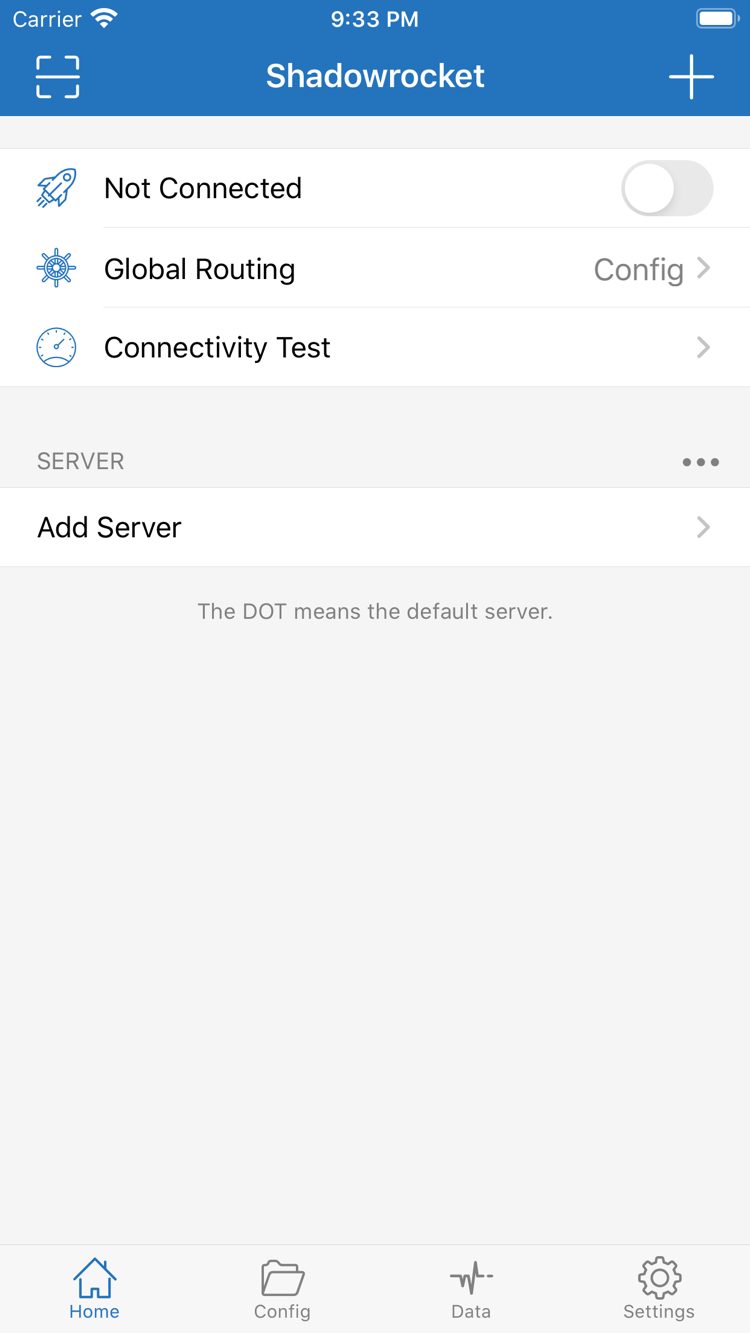
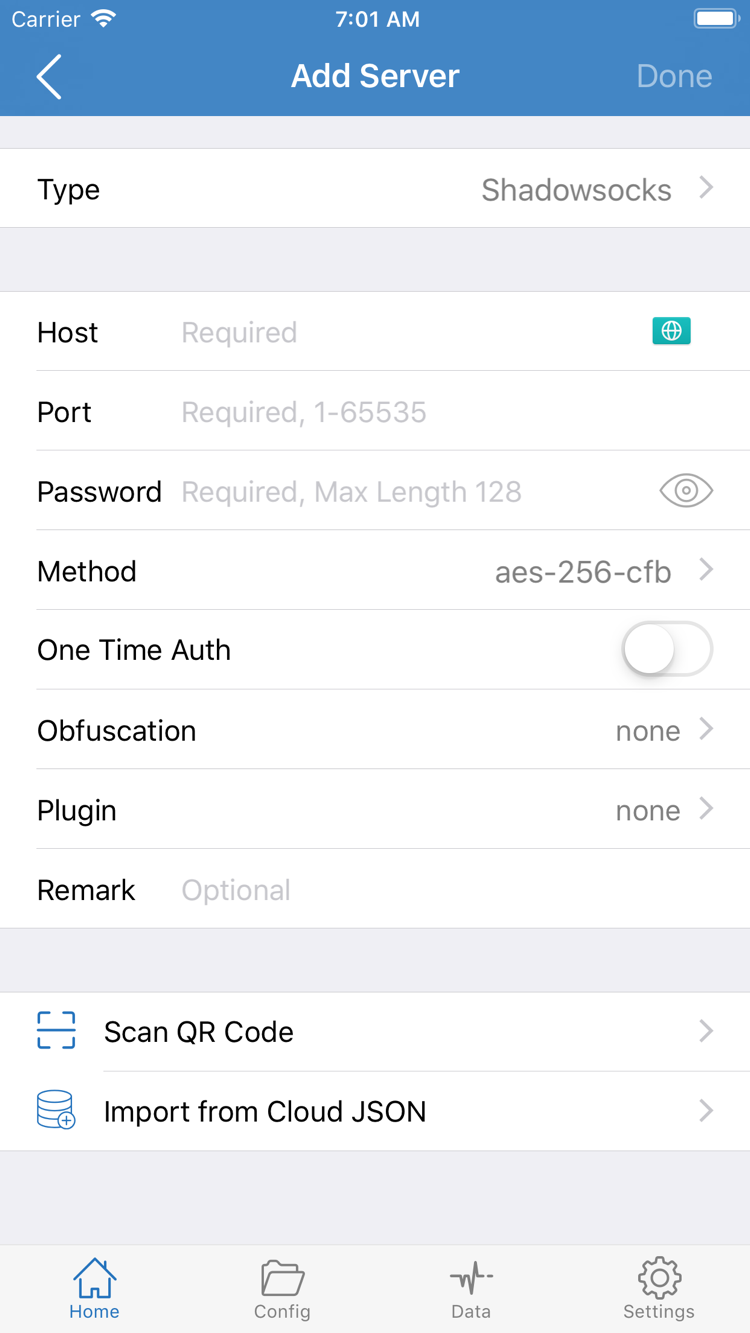
The two images below are official screenshots uploaded to the App Store by the developer. Use them to compare interface labels and page layout. Home shows Not Connected, Global Routing, Connectivity Test, and SERVER; Add Server shows the server fields. Text, layout, and available fields may vary by system, language, or app version. To verify the purchase, rely on the three App Store details rather than the position of a button.
03 / iPhone
After verifying the App Store listing, complete your purchase. Set up the app and approve system permissions after installation.
On your iPhone, open the verified App Store product page, review the price and compatibility details, then follow the store's purchase confirmation steps. After payment, wait for the download and installation to finish, then open the app from the Home Screen or tap Open in the App Store. System requirements are as shown on the App Store page; check compatibility on your device before buying rather than relying on whether it installs on someone else's device.
If the store reports a payment method issue, check the payment details in your account settings first. If the purchase is still pending after you confirm, check your purchase history to see whether an order was placed before taking further action. For low storage, a dropped connection, or a paused download, check your device storage and network respectively. These issues are separate from server settings in the app, so you don't need to change subscription details before installation is complete.
The first time you try to connect, your device may ask for permission to add a VPN configuration. Shadowrocket needs this authorization to establish a system connection. Verify which app is making the request, then review the system prompt and follow its instructions. Allowing the configuration only enables the client to attempt a connection; it doesn't confirm that the server details are correct or that a server is reachable. You'll still need to import your own details, select a server, and verify the connection.
On Home, first check that your existing server details have been imported correctly, then review Global Routing. Config routes traffic according to the rules in the configuration; Proxy uses a proxy, while Direct connects directly. Choose based on what your configuration is intended to do, not just the label. After tapping the connection switch, use Connectivity Test and try accessing a site to check the result. For the full import, mode selection, and troubleshooting steps, continue to Getting Started. See the Rules reference for rule details.
04 / iPad
iPhone and iPad purchases appear under the same Apple ID. Check your configuration details on the device you plan to use.
Shadowrocket is a universal app for iPhone and iPad. If you bought it on iPhone with an Apple ID, you can find it under Purchased in the App Store on a compatible iPad and download it again—there's no need to buy it separately for each device. Before you do, make sure Media & Purchases on the iPad uses the account that made the original purchase. Signing in to the same cloud account on both devices doesn't necessarily mean the App Store account is also the same.
An iPad's larger screen may change the layout of lists, fields, and navigation compared with iPhone, but labels such as Home, Config, and Settings can still help you find your way. Look for the feature name when following a guide rather than relying on a button's exact position in a screenshot. When adding a server, check Type and the corresponding fields. Changing devices doesn't mean you should replace the protocol, port, or password in your existing details.
Restoring a purchase and restoring configuration details are separate tasks. Even after installing the app on iPad, check that the SERVER list contains the correct entries, the selected item is the one you expect, and the configuration is enabled. If your details haven't been imported yet, set up the app using your existing subscription or server information. Don't assume that being able to open the app means the connection has been verified.
If the expected redownload option doesn't appear on your target device, first check the current account, storefront region, and compatibility notice, then review the original purchase history. Family Sharing eligibility is also subject to the App Store page and Family Sharing settings. A purchase on another device doesn't guarantee that the current account is eligible to download the app.
05 / Restore
Find the original purchase first, then restore the app. Once it's back on your device, check your connection details too.
On your new device, sign in with the Apple ID used for the original purchase. Open App Store → Account → Purchased, search for Shadowrocket, and download it again. The label may appear as App or another name for the purchase list in different system versions; follow the wording on your account page. If the account has a valid purchase record, you can normally download the app again at no extra cost. If the product page still shows a price, stop and check the account and purchase history before confirming another purchase.
Reinstalling the app restores the client itself; it doesn't mean your servers, subscriptions, or configuration files have also been restored to your new device. On Home, check the SERVER section to confirm your entries are there and complete. If your own details aren't present, import them again from your existing information. Check the source and contents of any backup, then confirm the active Config, Global Routing, and default server before trying to connect.
Changing devices doesn't maintain your server details for you. If an existing address, port, authentication detail, or subscription has changed, update it using your current information. Configuration files may contain passwords or access credentials, so don't publish their full contents or share screenshots containing private information as generic troubleshooting examples. When troubleshooting, note the error message and the step where it occurred; this is usually more useful than repeatedly reinstalling the app.
06 / Price
The US App Store reference price is $2.99. The amount you pay is shown on the current App Store page and purchase confirmation sheet.
Shadowrocket is a one-time purchase, not a monthly client subscription. Prices are shown in local currency on different storefronts, and the amount, tax display, and payment terms may vary. Don't assume the US reference price is the final price in another store. Before confirming payment, check the app name, currency, price, and account on your device. This page doesn't provide fixed currency conversions or guarantee that reference prices will remain unchanged.
Once you understand the difference, the setup order is straightforward: buy and install the app from the App Store, prepare your existing connection details, then import and verify them in the app. A successful payment only completes the app purchase. If no server has been added on Home or the details are incorrect, the client won't automatically establish the connection you expect. Check your configuration rather than buying the app again.
App updates are delivered through the App Store. Manage automatic updates in your device's store settings, or check for updates manually in your account's update list. See the store page for update details and system compatibility; this page doesn't indicate a specific version. Updating the app, updating Subscribe content, and switching Config are separate actions: the first updates the client, while the others involve your existing connection details and routing configuration. They are not interchangeable.
This is the official Shadowrocket guide to verifying, purchasing, and restoring the app. For steps after opening it, continue to first-time setup. To learn when to choose Config, Proxy, or Direct, read the Global Routing guide. Checking your store account, app purchase, and connection configuration separately can help avoid repeating steps in the wrong place.
Purchase FAQs
Identify where the issue occurs, then check the relevant account, device, or in-app setting.
First, check the country or region of the Apple ID used for Media & Purchases. The app isn't available on the mainland China storefront. Your device language and physical location don't determine which storefront your account sees. Check under Settings → Apple ID → Media & Purchases → View Account → Country/Region. Follow the account page instructions to see whether you can change it.
Read the specific App Store message, then check your account region, payment method, device compatibility, available storage, and network connection in that order. If the transaction status is unclear, check your purchase history before trying to pay again. For account or billing issues, use Apple Support on your device.
On the App Store, sign in with the Apple ID used for the original purchase and find Shadowrocket under Account → Purchased. You can usually download it again at no extra cost. If a price still appears, check your purchase history and current account first. After restoring the app, you'll need to import your existing subscription or server details.
Shadowrocket is a universal app for iPhone and iPad. Once purchased with the same Apple ID, you can redownload it from the App Store's Purchased section on a compatible iPad. Check the App Store page for system requirements and purchase eligibility.
The compatibility section on the same App Store product page lists Mac, Apple TV, and Apple Vision. Check availability in the App Store on your target device. System requirements, purchase eligibility, and universal purchase availability are as shown on the App Store page.
This official guide keeps interface labels in their original English. Check the connection status on Home, add your existing server details through Add Server, then review Global Routing and use Connectivity Test to verify. The official Home and Add Server screenshots on this page can help you match field names.